Purchase Inbound
A purchase inbound records goods received from a supplier. When it's approved, the quantities are added to stock at the For Location.
Menu: Purchase and Other Expense › Purchase Inbound
For buttons, statuses and approvals shared by all transactions, see Working with transactions.
Two ways to create an inbound
| Mode | Use it when |
|---|---|
| From Invoice | The goods were ordered on a Purchase Order. The products and quantities are copied from the PO, and CIRMS tracks how much of the PO is still to be received. |
| Direct | There's no purchase order. You enter the products yourself. |
The quickest way to receive a PO is from the PO itself. See How to receive a purchase order.
How to create a purchase inbound
-
Open Purchase and Other Expense › Purchase Inbound and click ⊕ (Add New Transaction).
-
Fill in the header:
Field What to enter Created For Your branch. For Location The location the goods are received into. Request by The user requesting the transaction. Supplier The supplier who delivered. DR No. The supplier's delivery receipt number. Supplier Invoice No. The supplier's invoice number. Supplier Box Count Number of boxes delivered. Payment Method / Term How and within how many days you'll pay. Requesting Branch / Request Location Only when receiving on behalf of another branch. Remarks Optional notes. -
Choose how to add products:
- From Invoice: pick the approved PO in Invoice and click Import. The PO's remaining products and quantities are added. Change the quantities to what actually arrived.
- Direct: add the products yourself (see How to add products).
-
Click Save ▾ and choose Save, Approve or Approve and Print.
-
If a product's purchase price on the inbound differs from its current purchase price, the Update Prices window opens when you approve (Price change detected. Do you want to apply new price/s on the following products?). Tick the products whose prices you want to update and click Apply, or click Disregard and Continue to approve without changing any prices.
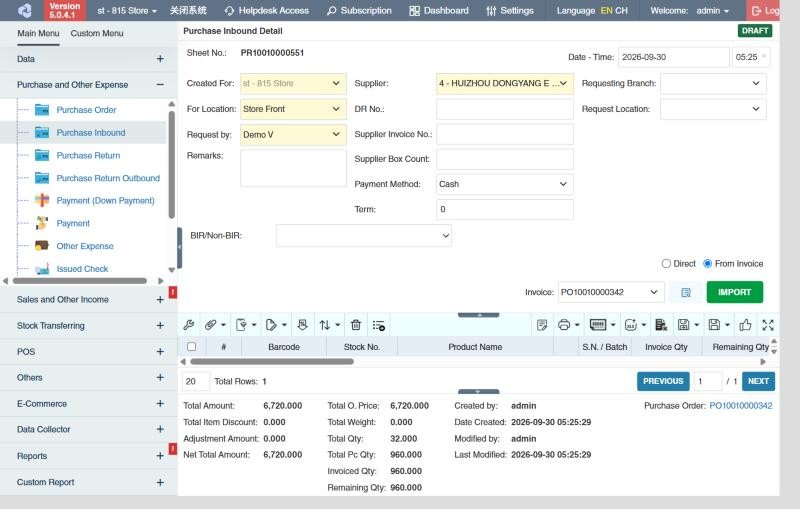
When you import from a PO, the product rows also show the PO's Invoice Qty and Remaining Qty, and the summary shows a link back to the Purchase Order.
Only an approved inbound changes stock. A Draft or For Approval inbound has no effect on inventory yet.
After approval
These buttons appear on an approved inbound:
- Create Payment: creates a Payment to the supplier for the unpaid amount of this inbound. It only appears while there's an amount left to pay.
- Update Prices Popup: shows the new purchase cost next to each product's current cost and prices, so you can update them in one step.
- Purchase and Other Expense › Purchase Inbound › Auto-update Cost: the product's cost is updated automatically when the inbound is approved.
- Purchase and Other Expense › Purchase Inbound › Create Price Adjust Request: lets you raise a Price Adjustment Request from the inbound.
Other things on a purchase inbound
- Serial numbers and batches: for products managed by serial number or batch, click the row's S.N. / Batch cell and enter a serial number for each unit, or create the batches with their expiry dates. See Management types.
- Data Collector (on a Direct inbound): brings in the products and quantities counted with a handheld scanner: enter the scan's Reference No.. See Data Collector Transaction.
- Override Invoice - Append Product (on a draft inbound made from a PO, if your administrator allows editable rows and you have the permission): adds a product that isn't on the PO, or changes a row's product or unit. The change is also made on the PO (Applying this product changes will also take effect to the corresponding Purchase Order Detail ":sheet". Are you sure you want to proceed?).
- Cur. Remaining Qty: how much of the PO row is still open after this inbound.
- Automatic group products can't be received as such: they're replaced by their components when you save (see Product grouping types).
What approval does
- Stock goes up at the For Location by each row's quantity in default units.
- The product's moving average cost (MA Cost) is recalculated from the new cost.
- The PO's remaining quantities go down, and its Transaction Status becomes complete or incomplete.
- The amount becomes payable to the supplier (due after the Term), and appears in the Payment Due Warning.
- Depending on your settings and permissions, the products' purchase prices are updated.
Example
Metro Foods delivers 80 cases of Canned Tuna (ordered 100) with delivery receipt DR-5521 and invoice SI-10045:
- Create a purchase inbound, From Invoice, choose the PO and click Import.
- Enter DR No. DR-5521, Supplier Invoice No. SI-10045 and Supplier Box Count 80. Change the tuna row to 80.
- The supplier raised the price from 1,368.00 to 1,400.00 per case; change the row's O. Price. Approve.
- The Update Prices window shows the new cost; tick the tuna and Apply so the product's purchase price becomes 1,400.00 (and check its selling price).
- Stock rises by 80 cases (1,920 cans if a case holds 24), the PO shows 20 remaining, and Create Payment is ready for 112,000.00.
Settings that affect this module
Your administrator can change these in Settings (see About settings). Click a section to see the choices.
Generic Settings › Product Pricing
Generic Settings › Purchase Inbound
- Auto-update Product's Purchase Price after approving of Transaction
- Auto-print after Save?
- Set the default printout template for this transaction module
- Show warning if have same serial number from old purchase return detected. This is to prevent receiving of repaired or refurbished stocks.
- Import from Data Collector: Use price based on Web System's Purchase Price
- Apply counter checking of serial number or batch by re-scanning it to another modal window?
- Allow transacted and unavailable serials to be used by other products.
- Auto input product Quantity and UOM base on History?
- Allow over-receiving from purchase order?
- Auto generate product batch during inbound transaction
Generic Settings › Sales and Other Income
Generic Settings › Security
Branch Settings › Payment
Branch Settings › Purchase Inbound
Branch Settings › Purchases
Other permissions for this module
| Permission | Allows you to |
|---|---|
| Purchase and Other Expense › Purchase Inbound › Approve | Approve inbounds, which adds the stock |
| Purchase and Other Expense › Purchase Inbound › Revert | Revert inbounds back to draft, which removes the stock again |
| Purchase and Other Expense › Purchase Inbound › Edit Price | Change the price on a row |
| Purchase and Other Expense › Purchase Inbound › Show Cost | See product costs |
| Purchase and Other Expense › Purchase Inbound › Override Transaction Details | Change products or quantities that were imported from a PO |
| Purchase and Other Expense › Purchase Inbound › View Other Users' Transaction | See inbounds created by other users |