Sales
A Sales transaction is a customer order or quotation: what the customer wants to buy, at what price.
Stock goes down only when the goods are released in an approved Sales Outbound. You can skip this module and create a Sales Outbound directly.
Menu: Sales and Other Income › Sales
For buttons, statuses and approvals shared by all transactions, see Working with transactions.
How to create a sales order
-
Open Sales and Other Income › Sales and click ⊕ (Add New Transaction).
-
Choose Regular Customer (a customer saved in Data › Customer) or Walk-in Customer.
-
Fill in the header:
Field What to enter Created For / For Location Your branch and the location the goods will come from. Dispatch From The location the goods will be dispatched from. Request by The user taking the order. Customer and Customer Branch For a regular customer. The customer's default salesman and prices are filled in. Walk-in Name For a walk-in customer: their name. Salesman The salesman for this sale. Term Number of days until the customer must pay. PO No Ref. The customer's own purchase order number, if any. Remarks Optional notes. Price Based on shows which prices are used, for example Customer Settings.
-
Add the products and quantities (see How to add products).
-
Click Save ▾ and choose Save, Approve or Approve and Print.
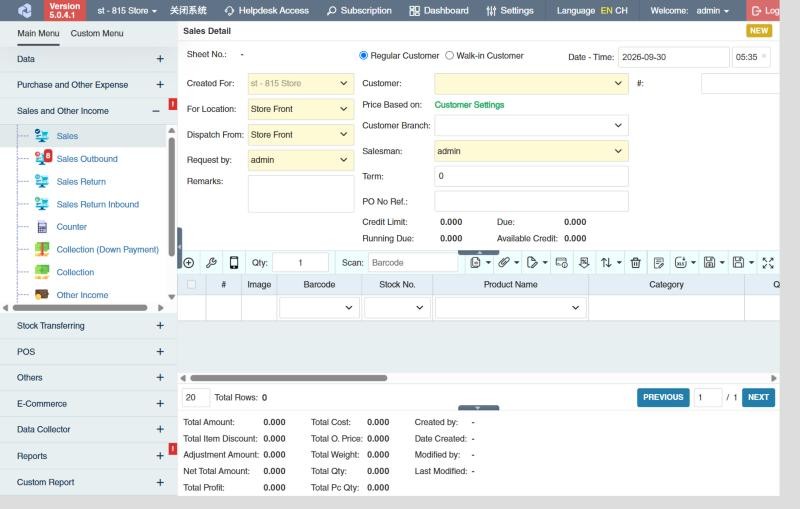
For a regular customer, the header also shows the customer's Credit Limit, current Due, Running Due (the due after this transaction) and Available Credit.
How to release the goods (create a Sales Outbound)
- In the sales list, tick the approved sales transactions.
- Click the Create Sales Outbound icon in the toolbar.
- Check the quantities and choose the Approval Status of the new transaction: Draft or, if you can approve sales outbounds, Approved.
- Click the 🧺 (create) button.
Approve the new Sales Outbound to take the goods out of stock. See Sales Outbound.
Other things on a sales order
- Collection (Down Payment) Detail: shows the down payments collected for this order (see Collection (Down Payment)).
- Discount / Adjustment: discounts or charges on the whole order (needs the permission to edit them).
- Mobile View: switches to a simpler screen for phones and tablets, for salesmen taking orders at the customer's store.
- Total Profit and Total Cost in the summary, for users allowed to see them.
- Linked transactions in the summary: the picking list, down payments, counters, sales outbounds, collections and returns made from the order, with their status.
- An approved order reserves its quantities: they count in Reserved Qty and are no longer Avail. Inv for other orders, until they're delivered or the order is cleared.
Example
ABC Grocery phones in an order: 50 sacks of Rice 25 kg and 20 cases of Softdrink 1.5 L, to be delivered tomorrow:
- Create a sales order for the regular customer ABC Grocery. Its Salesman, Term (30) and wholesale prices are filled in; Available Credit shows 40,000.00.
- Add the products. Net Total Amount is 71,300.00, more than the available credit, so the Running Due goes over the Credit Limit. The manager decides whether to accept the order; if your company restricts credit limits, the delivery can only be approved by someone allowed to exceed the limit (see Credit limit).
- The warehouse prints a picking list, then creates the sales outbound from the order the next morning (see above) and approves it when the truck leaves. Stock goes down, and the customer owes 71,300.00, due in 30 days.
Settings that affect this module
Your administrator can change these in Settings (see About settings). Click a section to see the choices.
Generic Settings › Customer
Generic Settings › Product
Generic Settings › Sales and Other Income
- For walk-in customers, prices are based from
- Hide all Sales & Collection Transactions before the specified date?
- Allow negative qty (as Returns) in Sales and Sales Outbound
- For regular customers, prices are based from
- For sales transaction, restrict products with "Zero" prices
Generic Settings › Sales
- Warn if inventory reaches minimum?
- Hide the "Price Based On" label in transaction header
- Auto-print after Save?
- Set the default printout template for this transaction module
- Display popup "Edit Product Detail" after selecting/scanning products? (Mobile View Mode Only)
- Enable Viewing of Customer Credit Limit
- Auto select product batch during transaction saving if none is selected
Branch Settings › Collection
Branch Settings › Sales Outbound
Other permissions for this module
| Permission | Allows you to |
|---|---|
| Sales and Other Income › Sales › Approve | Approve sales transactions |
| Sales and Other Income › Sales › Revert | Revert them back to draft |
| Sales and Other Income › Sales › Edit Price | Change the price on a row |
| Sales and Other Income › Sales › Edit Row Discount | Change the row discount |
| Sales and Other Income › Sales › Show Cost | See product costs |
| Sales and Other Income › Sales › Show Total Profit | See the total profit |
| Sales and Other Income › Sales › View Other Users' Transaction | See sales created by other users |