Purchase Return
A purchase return lists the products you plan to send back to a supplier, for example wrong or defective items.
Stock goes down only when the goods leave in an approved Purchase Return Outbound. You can skip this module and create a Purchase Return Outbound directly.
Menu: Purchase and Other Expense › Purchase Return
For buttons, statuses and approvals shared by all transactions, see Working with transactions.
How to create a purchase return
-
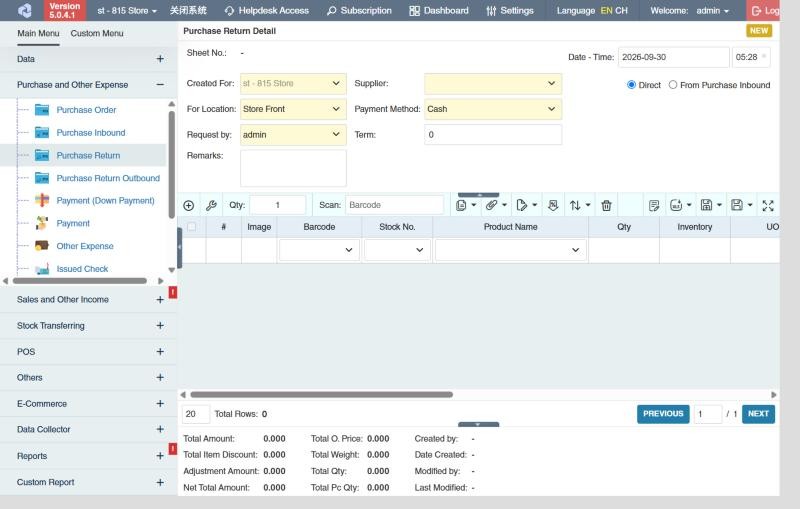
Open Purchase and Other Expense › Purchase Return and click ⊕ (Add New Transaction).
-
Fill in the header:
Field What to enter Created For Your branch. For Location The location the goods are returned from. Request by The user requesting the return. Supplier The supplier you're returning to. Payment Method / Term Payment details for the return. Remarks The reason for the return, or other notes. -
Choose how to add products:
- Direct: add the products yourself (see How to add products).
- From Purchase Inbound: type the sheet number of the Purchase Inbound the goods came in on, pick it and click Import. Then keep only the products and quantities being returned.
-
Click Save ▾ and choose Save, Approve or Approve and Print.
How to send the goods back (create a Purchase Return Outbound)
- In the purchase return list, tick the approved returns.
- Click the Create Purchase Return Outbound icon in the toolbar.
- Check the quantities and choose the Approval Status of the new outbound: Draft or, if you can approve purchase return outbounds, Approved.
- Click the 🧺 (create) button.
From an open return: tick the product rows, click the 🧺 Create Purchase Return Outbound button, check the quantities and click 🧺 in the window.
CIRMS creates and opens the Purchase Return Outbound. Approve it to take the goods out of stock. See Purchase Return Outbound.
Example
A customer returned 6 Electric Kettles with a factory defect; they're in the store's stockroom and must go back to HomeTech:
- Create a purchase return: Supplier HomeTech, the stockroom as For Location, and, with From Purchase Inbound, import the original purchase inbound and keep only the 6 kettles (the price you paid, 1,250.00, is copied). Approve it: nothing leaves stock yet, but the 6 units are now reserved (they show in Reserved Qty).
- When the supplier's truck picks them up, create the purchase return outbound from the return (see above) and approve it: stock goes down by 6.
- When you next pay HomeTech, add the outbound with Purchase Return Outbound Selector in Payment: 7,500.00 is deducted from what you pay.
Settings that affect this module
Your administrator can change these in Settings (see About settings). Click a section to see the choices.
Generic Settings › Product
Generic Settings › Purchase Return
- Warn if inventory reaches minimum?
- Allow to create purchase return transaction without referencing of purchase inbound transaction
- Allow to create return outbound transaction without reference purchase return.
- Auto-print after Save?
- Set the default printout template for this transaction module
Branch Settings › Purchases
Other permissions for this module
| Permission | Allows you to |
|---|---|
| Purchase and Other Expense › Purchase Return › Approve | Approve purchase returns |
| Purchase and Other Expense › Purchase Return › Revert | Revert them back to draft |
| Purchase and Other Expense › Purchase Return › Edit Price | Change the price on a row |
| Purchase and Other Expense › Purchase Return › View Other Users' Transaction | See returns created by other users |