Payment (Down Payment)
A down payment records money paid to a supplier in advance, against an approved Purchase Order. When the goods are received and paid, the down payment is deducted from what you still owe.
Menu: Purchase and Other Expense › Payment (Down Payment)
How to make a down payment
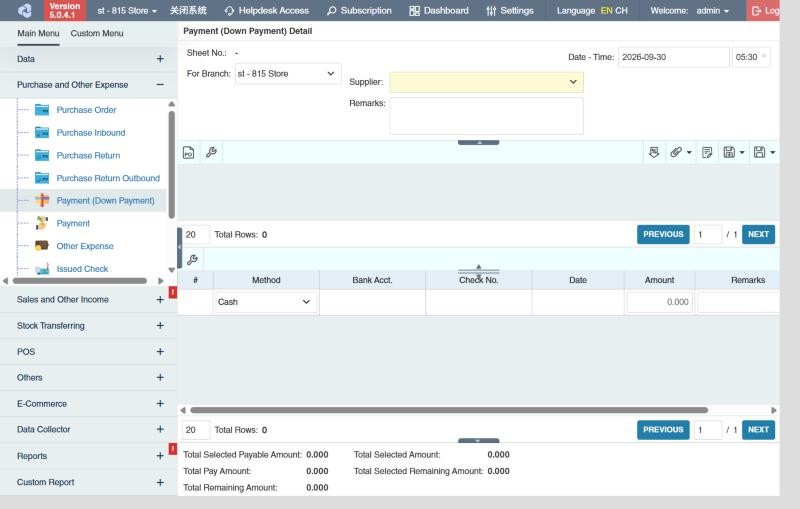
- Open Purchase and Other Expense › Payment (Down Payment) and click ⊕ (Add New Transaction).
- Choose For Branch and the Supplier.
- Click Purchase Order Selector (PO icon), tick the purchase orders, then click Add.
- Enter the amount to pay against each purchase order.
- In the lower table, add the payment Method and Amount. For a check, also choose the Bank Acct. and enter the Check No. and Date. Click ✔ at the right end of the row to add it.
- Click Save ▾ and choose Save, Approve or Approve and Print.
The row's Down Payment Amount then shows on the related transactions when you create the final Payment.
Example
HomeTech asks for 30% in advance on a purchase order of 150,000.00. Create a down payment for HomeTech, add the PO with Purchase Order Selector, enter 45,000.00, and in the lower table pay 45,000.00 by bank deposit from your BDO account. Approve. When the goods arrive and you pay the purchase inbound in Payment, its Down Payment Amount of 45,000.00 is already deducted, so you pay the remaining 105,000.00.
Settings that affect this module
Your administrator can change these in Settings (see About settings). Click a section to see the choices.
Generic Settings › Payment (Down Payment)
Other permissions for this module
| Permission | Allows you to |
|---|---|
| Purchase and Other Expense › Payment (Down Payment) › Approve | Approve down payments |
| Purchase and Other Expense › Payment (Down Payment) › Revert | Revert them back to draft |
| Purchase and Other Expense › Payment (Down Payment) › View Other Users' Transaction | See down payments created by other users |