Inventory Adjust
An inventory adjustment corrects the stock of products directly, for example to match a physical count, or to fix quantities entered wrongly. When it's approved, the stock is changed at the For Location.
Menu: Others › Inventory Adjust
For buttons, statuses and approvals shared by all transactions, see Working with transactions.
After a stock count, you don't have to type the adjustments yourself. Enter the count in Physical Inventory Count and convert it to an inventory adjustment.
How to adjust stock
- Open Others › Inventory Adjust and click ⊕ (Add New Transaction).
- Fill in Created For, For Location (the location whose stock you're correcting), Request by and Remarks (the reason for the adjustment).
- Add the products (see How to add products). Each row shows the current Inventory. Enter the quantity that should be in stock in Qty (with its UOM). Total Qty shows it in the base unit and Diff. Qty the difference from the current stock. If you don't see the Qty column, turn it on in 🔧 Column Settings.
- Click Save ▾ and choose Save, Approve or Approve and Print.
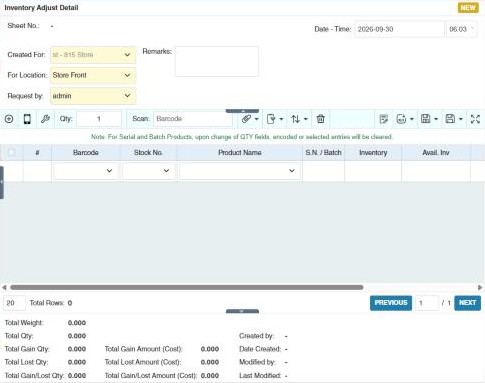
The summary shows the Total Gain Qty and Total Lost Qty, with their cost.
For serial-number and batch products, changing a quantity clears the serial numbers or batches you've entered on that row. Re-enter them after changing the quantity.
Importing counts from a handheld
On a new adjustment, Data Collector brings in quantities scanned with the Data Collector app: enter the scan's Reference No. and choose Import Adjust Qty to: Qty (the scanned quantity is what's on the shelf) or Diff. Qty (the scanned quantity is the difference to add or remove). Note: For Serial and Batch Products, upon change of QTY fields, encoded or selected entries will be cleared.
Example
A spot check finds 88 Bath Soap on the shelf; the system says 100. Create an adjustment for the store location with Remarks Spot check 12 June, add the soap and enter Qty 88: Diff. Qty shows −12. The summary shows Total Lost Qty 12 and its cost (216.00). After approval, stock is 88 and the loss appears as Adjustment Discrepancy in the Income Statement.
Settings that affect this module
Your administrator can change these in Settings (see About settings). Click a section to see the choices.
Generic Settings › Inventory Adjust
- Auto-print after Save?
- Set the default printout template for this transaction module
- Enable manual key/scanning only of serial number or batch in column "S.N. / Batch" modal window.
- Auto generate product batch during inbound transaction
- Allow transacted and unavailable serials to be used by other products.
Other permissions for this module
| Permission | Allows you to |
|---|---|
| Others › Inventory Adjust › Approve | Approve adjustments, which changes the stock |
| Others › Inventory Adjust › Revert | Revert adjustments back to draft |
| Others › Inventory Adjust › Import Excel | Import products from Excel |
| Others › Inventory Adjust › View Other Users' Transaction | See adjustments created by other users |