Payment
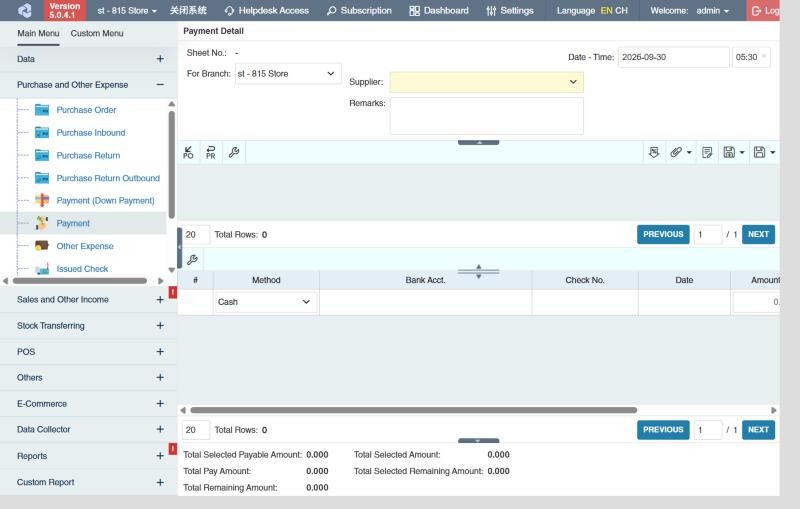
A payment records money paid to a supplier. It settles one or more approved Purchase Inbound transactions and can deduct Purchase Return Outbound transactions. One payment can use several payment methods, such as part cash and part check.
Menu: Purchase and Other Expense › Payment
How to pay a supplier
-
Open Purchase and Other Expense › Payment and click ⊕ (Add New Transaction).
-
Choose For Branch and the Supplier. Add Remarks if needed.
-
Add what you're paying for:
- Click Purchase Inbound Selector (PO icon), tick the inbounds to pay, then click Add or Add & Continue.
- To deduct returns, click Purchase Return Outbound Selector (PR icon) and add them the same way.
-
In each row, check the Pay Amount. It starts at the full remaining balance; lower it to pay only part. The row shows the Net Total Amount, Paid Amount so far and Remaining balance.
-
In the lower table, add how you're paying. Choose the Method (for example Cash, Check or Bank Deposit), then:
- For a check: choose the Bank Acct. and enter the Check No. and Date.
- For a bank deposit: choose the Bank Acct..
- Enter the Amount (the grey figure in the box is only a suggestion), then click ✔ at the right end of the row to add it.
Add another row to split the payment across methods.
-
Check the summary at the bottom: Total Selected Payable Amount should match Total Pay Amount, and Total Remaining Amount must be 0. Otherwise approving fails with Remaining Amount must be equal to zero.
-
Click Save ▾ and choose Save, Approve or Approve and Print.
You can also start a payment from an approved Purchase Inbound with its Create Payment button. See Purchase Inbound.
Checks paid here appear in Issued Check. Charge (card or e-wallet) payments appear in Charge Expense.
Other things on a payment
- Supplier's Account Balance / Remaining Supplier Balance: in the header, what you owe the supplier in total, and what's left after this payment.
- Adjustment (per row) and Discount/Adjust All: add a discount or adjustment to one inbound or to all of them, for example a prompt-payment discount the supplier gives. Choose the Disc/Adj Type, Adjustment By (By Discount (%) or By Amount (±)) and Adjustment Value; the window shows the Sub Total Amount, Adjustment Amount and Net Total.
- Down Payment Amount: down payments already made on the inbound's purchase order are deducted automatically.
- Each row also shows the inbound's Due Date, DR No., Supplier Invoice No.(PI) and Supplier Box Count(PI), to match against the supplier's statement.
What approval does
The inbounds' remaining balances go down by the pay amounts (a fully paid inbound drops off the Payment Due Warning). Cash payments appear in the Cash Transaction report, checks in Issued Check, bank deposits in the bank account's movements, and charges in Charge Expense.
Example
Metro Foods sends a statement: two purchase inbounds of 112,000.00 and 82,500.00, less a return of 7,500.00, and a 2% discount for paying within 10 days on the first inbound:
- Create a payment for Metro Foods; add both inbounds with Purchase Inbound Selector and the return with Purchase Return Outbound Selector.
- On the first inbound's Adjustment, add Prompt Payment Discount, By Discount (%) 2: its net becomes 109,760.00.
- Total Selected Payable Amount is 109,760.00 + 82,500.00 − 7,500.00 = 184,760.00. In the lower table, pay by check: Bank Acct. BDO, Check No. 004512, Amount 184,760.00. Total Remaining Amount is 0.
- Approve. The check appears in Issued Check until it clears.
Settings that affect this module
Your administrator can change these in Settings (see About settings). Click a section to see the choices.
Generic Settings › Payment
Branch Settings › Payment
Other permissions for this module
| Permission | Allows you to |
|---|---|
| Purchase and Other Expense › Payment › Approve | Approve payments |
| Purchase and Other Expense › Payment › Revert | Revert payments back to draft |
| Purchase and Other Expense › Payment › Discount / Adjustment | Add a discount or adjustment to a payment |
| Purchase and Other Expense › Payment › Edit Date/Time | Change the payment date and time |
| Purchase and Other Expense › Payment › View Other Users' Transaction | See payments created by other users |