Printout Template
Printout templates control the layout of printed transactions, such as purchase orders, delivery receipts and invoices. Each module has a default template; you can change it or add your own.
Menu: Others › Templates › Printout Template
How to create a printout template
Required permission
Others › Printout Template › Create
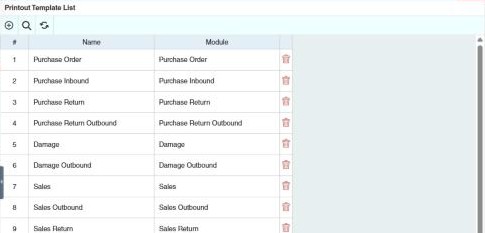
- Open Others › Printout Template and click ⊕.
- Enter a Name and choose the Module it's for. The module's default layout is loaded.
- To start from another template, choose it and click Copy. To start from a blank page, click Clear.
- Edit the layout: choose the Section (for example the header), tick the fields to print on the Labels and Values tabs, and move and resize them on the page. Set the paper size, orientation and margins under 📄 Paper. Show Guidelines shows the field outlines.
- Use Print Preview to check it, then save.
When you print a transaction, choose the template from the Print menu. Users only see the templates allowed in their User › Printout Permissions.
Example
The company wants its sales outbound printout to show the customer's TIN and a signature line. Create a template for Sales Outbound with those fields, then allow users to print with it on the Printout Permissions tab in User or Role.
Other permissions for this module
| Permission | Allows you to |
|---|---|
| Others › Printout Template › Update | Change templates |
| Others › Printout Template › Delete | Delete templates |