Bank Transaction
Use Bank Transaction to keep track of money moved in and out of your bank accounts: Deposits, Withdrawals and Transfers between accounts. It's a record only: CIRMS doesn't move any money at the bank.
Menu: Others › Bank Transaction
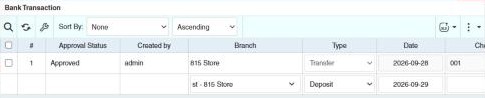
How to record a bank transaction
Required permission
Others › Bank Transaction › Create
- Open Others › Bank Transaction.
- In the empty row at the bottom, choose the Branch and the Type:
- Deposit: choose the bank account the money went into.
- Withdrawal: choose the bank account the money came out of.
- Transfer: choose the account it came from and the account it went to.
- Enter the Date and the Amount, and the Check No. and Check Date if it was done by check.
- Click ✔ to save the row. It's saved as a Draft.
- To approve it, tick the row and choose ⋮ Bulk Action › Approve (or For Approval to send it to an approver). The Approval Status column shows where each record is.
These records are included in the Bank Transaction Report.
Example
On Monday the store deposits the weekend's cash, 85,400.00, into its BDO account: add a row with Type Deposit, the BDO account, the date and 85,400.00, save and approve. Later, 50,000.00 is moved from BDO to the payroll account at BPI: one Transfer row from BDO to BPI. Both appear in the Bank Transaction Report, and the deposit in the Stores Deposit Validation Report.
Other permissions for this module
| Permission | Allows you to |
|---|---|
| Others › Bank Transaction › Approve | Approve bank transactions |
| Others › Bank Transaction › Revert | Revert them |
| Others › Bank Transaction › Delete | Delete them |