Product Discount
Product discounts reduce the selling price of selected products for a period, for example a weekend sale. They're applied automatically at the POS.
Menu: Others › Product Discount
How to create a product discount
-
Open Others › Product Discount and click ⊕ (Add New Product Discount).
-
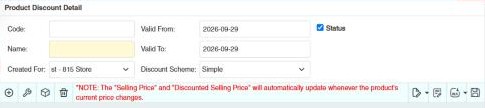
Fill in the header:
Field What to enter Code / Name A code and a name. The name is required. Created For The branch the discount applies to. Valid From / Valid To The dates the discount runs. Discount Scheme Simple (always applies) or Discount on Minimum Purchase (applies only when the customer buys at least the Minimum Qty). Status Tick to turn the discount on. -
Add the products (⊕ or Selector). For each, set:
- Discount Type: Percentage or Deduct Amount.
- Discount Value: the percentage or the amount.
- Minimum Qty for a minimum-purchase discount.
The row shows the Selling Price and the Discounted Selling Price. Use Bulk Edit to set the same discount on many rows.
-
Click 💾 (Save).
Copying discounts to other branches
In the list, tick discounts and use Copy Selected Transaction into (Branch) to copy them to another branch (requires Others › Product Discount › Create Discount For Other Branch).
Example
Weekend sale on coffee: Name Coffee Weekend, Valid From Saturday, Valid To Sunday, Discount Scheme Simple, with Coffee 3-in-1 (10s) at Percentage 10 (retail 95.00 → Discounted Selling Price 85.50). A second discount, Discount on Minimum Purchase, gives 5.00 off (Deduct Amount) each Softdrink 1.5 L when a customer buys at least 6 (Minimum Qty 6). Regular customers whose Apply "Others->Product Discount" is Yes also get these discounts on back-office sales.
Other permissions for this module
| Permission | Allows you to |
|---|---|
| Others › Product Discount › Update | Change discounts |
| Others › Product Discount › Delete | Delete discounts |
| Others › Product Discount › Import Excel | Import discounts from Excel |