Terminal List
Terminal List shows each POS terminal: its branch, Terminal No., POS Version and Last Complete Sync with the web system.
Menu: POS › Terminal List
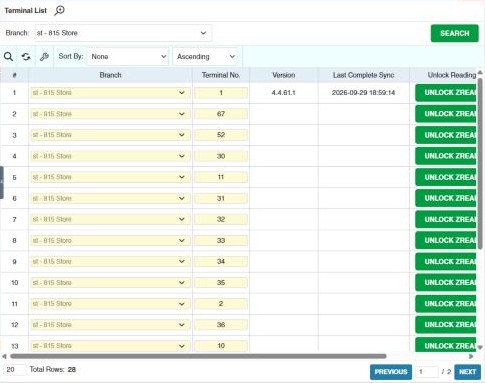
The columns
| Column | What it shows |
|---|---|
| Branch / Terminal No. | Where the terminal is. |
| Version | The POS program version installed. |
| Last Complete Sync | The last time the terminal finished exchanging data with the web system (products and prices in, sales out). |
| Status / Last Online | Whether the terminal is Online now, or when it was last online. |
| Lock Mode | What the terminal may still do: Level 1 = Reprints, Readings and Reports Only. Level 2 = Transactions, Reprints, Readings and Reports are RESTRICTED. Superadmin login only. Level 3 = Use of POS is Fully Restricted. |
| PTU Business Name, PTU Owner, PTU Address, PTU Permit No., PTU Acc, PTU Min, PTU Serial, PTU TIN, PTU Is Vat, PTU Approval Date | The terminal's permit to use (PTU) details, printed on its receipts. |
| Pos Provider Name, Pos Provider Address, Pos Provider TIN, Pos Provider Acc Date | The POS software provider's accreditation details, also printed on receipts. |
| Terminal Report | 📄 opens the Terminal Logs the terminal sent (Date, Error Code, Content). |
Example. The manager sees that terminal 4 at Store 2 was Last Online yesterday at 21:10 and its Last Complete Sync is two days old: today's price changes haven't reached it. She asks the store to check the terminal's network before opening.
How to check a terminal
- Open POS › Terminal List, choose the Branch and click Search.
- Check Last Complete Sync. If it's old, the terminal may be offline or not syncing.
- If a terminal has sent logs, a 📄 icon appears in its Terminal Report column. Click it to read them.
How to unlock a Z reading
If a terminal's end-of-day reading is locked and the cashier needs to redo it, click Unlock Zread on that terminal's row.
Required permission
POS › Terminal List › Unlock Zread