Collection
A collection records money received from a customer. It settles one or more approved Sales Outbound transactions or Counter statements, and can deduct Sales Return Inbound transactions. A customer can pay in several collections until the balance is cleared, and one collection can use several payment methods.
Menu: Sales and Other Income › Collection
How to collect from a customer
-
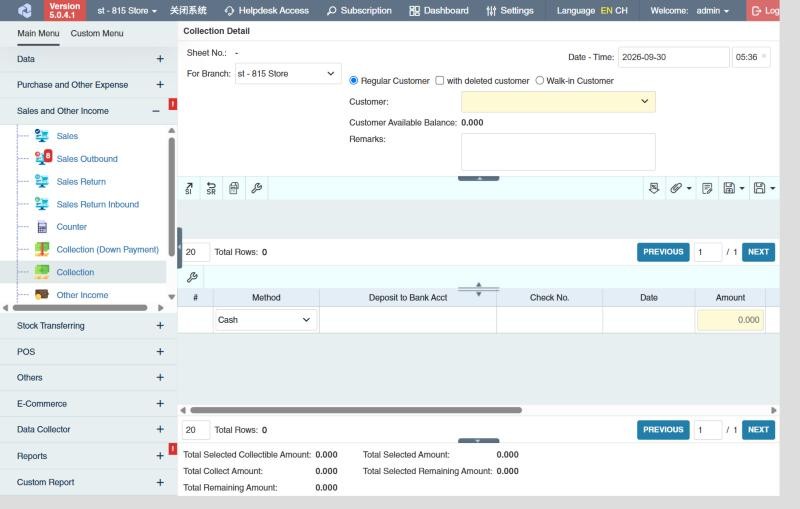
Open Sales and Other Income › Collection and click ⊕ (Add New Transaction).
-
Choose For Branch, then Regular Customer or Walk-in Customer, and the Customer. Tick with deleted customer to find a customer that has since been deleted.
-
Add what the customer is paying for:
- Sales Outbound Selector (SI icon) for outbounds,
- Sales Return Inbound Selector (SR icon) to deduct returns,
- Counter Selector to collect a whole Counter.
Tick the transactions, then click Add or Add & Continue.
-
In each row, check the Collect Amount. It starts at the full remaining balance; lower it to collect only part.
-
In the lower table, add how the customer paid: the Method, the Deposit to Bank Acct if it's deposited, the Check No. and Date for a check, and the Amount, then click ✔ at the right end of the row to add it (with the amount left empty, ✔ adds the whole remaining amount). Add rows to split the payment.
-
Check the summary: Total Selected Collectible Amount and Total Collect Amount. Total Remaining Amount must be 0, otherwise approving fails with Remaining Amount must be equal to zero.
-
Click Save ▾ and choose Save, Approve or Approve and Print.
Checks received here appear in Received Check. Card and other charge payments appear in Charge Collection.
You can also start a collection from an approved Sales Outbound with its Create Collection button.
Other things on a collection
- Customer Available Balance: money the customer paid in advance (Customer Load List) can be used as a payment method; the header shows what's left (Customer Balance).
- Adjustment per row and Discount/Adjust All: discounts or deductions on the collected sales, for example a withholding tax or an early-payment discount (Disc/Adj Type, Adjustment By, Adjustment Value).
- Card payments: choose the Charge Type in Adv. Info; a payment surcharge can take the bank's fee off automatically (Charge Amount).
What approval does
The collected sales' remaining balances go down (fully paid ones leave the Collection Due Warning). Cash shows in the Cash Transaction and Daily Collections and Expenses reports, checks in Received Check until deposited, and card payments in Charge Collection.
Example
ABC Grocery pays its June counter of 473,600.00: a check of 460,000.00 and the rest in cash, and deducts 1% withholding tax on 100,000.00 of it. Create a collection, add the counter, put an adjustment of 1,000.00 (withholding tax) on it, then add two payments: Check 460,000.00 (bank, Check No., date) and Cash 12,600.00. Total Remaining Amount is 0; approve.
Settings that affect this module
Your administrator can change these in Settings (see About settings). Click a section to see the choices.
Generic Settings › Collection
Generic Settings › Sales and Other Income
Branch Settings › Collection
Other permissions for this module
| Permission | Allows you to |
|---|---|
| Sales and Other Income › Collection › Approve | Approve collections |
| Sales and Other Income › Collection › Revert | Revert collections back to draft |
| Sales and Other Income › Collection › Discount / Adjustment | Add a discount or adjustment to a collection |
| Sales and Other Income › Collection › Edit Date/Time | Change the collection date and time |
| Sales and Other Income › Collection › View Other Users' Transaction | See collections created by other users |