Sales Outbound
A sales outbound records goods delivered or released to a customer. When it's approved, the quantities are removed from stock at the For Location, and the amount is added to what the customer owes.
Menu: Sales and Other Income › Sales Outbound
For buttons, statuses and approvals shared by all transactions, see Working with transactions.
A red badge on Sales Outbound in the menu counts overdue outbounds that still need to be collected. Click the badge to list them.
How to create a sales outbound
- Open Sales and Other Income › Sales Outbound and click ⊕ (Add New Transaction).
- Choose Regular Customer or Walk-in Customer, then fill in the header the same way as for Sales: Customer, Customer Branch, Salesman, Term, PO No Ref. and Remarks.
- Choose how to add products:
- Direct: add the products yourself.
- From Invoice: pick an approved Sales transaction and click Import.
- Check each row's Qty, UOM and price.
- Click Save ▾ and choose Save, Approve or Approve and Print.
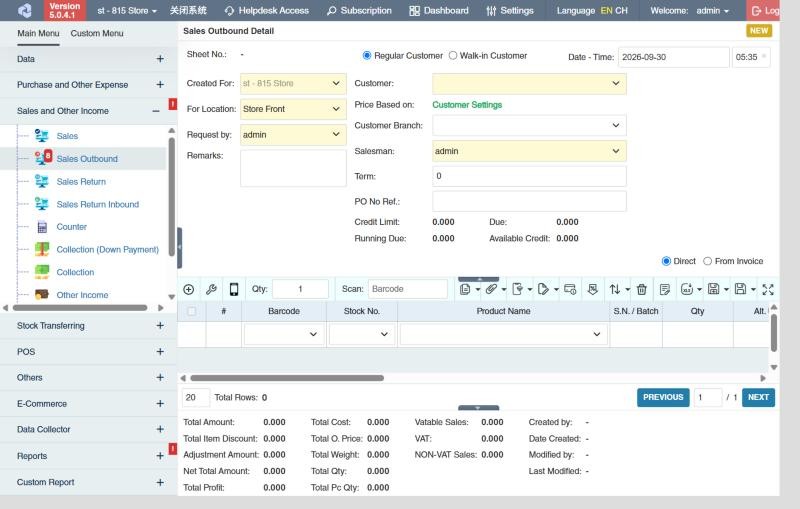
The summary shows the totals, including Total Profit (if you're allowed to see it), Vatable Sales, VAT and NON-VAT Sales.
A warning icon next to a product means there isn't enough stock. You can save or approve the outbound only if your company allows negative inventory in outbound transactions.
How to collect payment on the outbound itself
If the customer pays when the goods are released, record the payment directly:
- After adding the products, click the Collection Detail button.
- Choose the payment method. For a check, choose the bank account and enter the check number and date. For a card or other charge method, click Adv. Info and choose the Charge Type.
- Enter the amount and click ✔ at the right end of the row to add it. If you leave the amount empty, ✔ adds the whole remaining amount. Add more rows to split the payment.
- Click Close, then save or approve the outbound.
The payments must add up to the full amount due (the net total less any down payment used); otherwise you'll see Total collect amount should be equal to net total amount. You also need Sales and Other Income › Collection › Create and Sales and Other Income › Collection › Approve.
- If you save the outbound as a draft, the payments are kept with it and can still be changed.
- When the outbound is approved, CIRMS creates an approved Collection for the payments, so the outbound is paid.
Collecting later
After approval, click Create Collection on the outbound to create a Collection for the unpaid amount (This will automatically create a collection entry, do you want to continue?). You can also collect several outbounds at once in Collection.
Credit limit
If your company turns on Enable Customer Credit Limit Control, the header shows the customer's Credit Limit, Due, Running Due and Available Credit. When the transaction would go over the limit, you'll see: Transaction amount is over the credit limit, do you want to continue?
Depending on your settings, you can continue, or you're blocked unless you have Sales and Other Income › Sales Outbound › Allow Customer exceed credit limit.
Other things on a sales outbound
- Serial numbers and batches: for products managed by serial number or batch, click the row's S.N. / Batch cell and choose which serials or batches leave stock (see Management types). Your administrator can make CIRMS pick batches automatically.
- Automatic group products (bundles) take their components out of stock automatically (see Product grouping types).
- Picking and inspection: if the goods were picked with a Picking List or checked in Inspection Mode, the rows show the picked or inspected quantities.
- Returns: goods the customer sends back are recorded in Sales Return and Sales Return Inbound; the summary links to them.
What approval does
- Stock goes down at the For Location; serial numbers become sold and batches go down.
- The customer's balance goes up by the net total (less payments collected on the outbound), due after the Term; it shows in Customer Balance and, once overdue, in the Collection Due Warning.
- The sales order's remaining quantities go down.
- The sale counts in the sales and profit reports and the Income Statement (Backend column).
Example
A walk-in customer buys 2 Electric Fans and pays in cash on the spot:
- Create a sales outbound, Walk-in Customer, Walk-in Name Juan Reyes, Direct. Add the fans at 1,850.00 each. Both fans are managed by serial number, so pick their serials in S.N..
- Click Collection Detail, choose Cash and click ✔ (the whole 3,700.00 is added), then Close.
- Click Approve and Print. Stock drops by 2, the serials are recorded as sold to Juan Reyes, and a collection of 3,700.00 is created, so nothing is left to collect.
Settings that affect this module
Your administrator can change these in Settings (see About settings). Click a section to see the choices.
Generic Settings › Customer
Generic Settings › Product
Generic Settings › Sales and Other Income
- For walk-in customers, prices are based from
- If customer is based on "% Add from Purchase" or "% Discount from Wholesale/Retail" Price, save the % rate as Discount rate in transaction?
- Hide all Sales & Collection Transactions before the specified date?
- Allow negative qty (as Returns) in Sales and Sales Outbound
- For regular customers, prices are based from
- For sales transaction, restrict products with "Zero" prices
Generic Settings › Sales Outbound
- Enable Customer Credit Limit Control
- Should untransferred (post-dated or uncleared) checks be counted in the credit limit usage?
- Warn if inventory reaches minimum?
- Hide the "Price Based On" label in transaction header
- Auto-print after Save?
- Set the default printout template for this transaction module
- Update customer's historical price if product price is updated.
- Import from Data Collector: Use price based on Web System Customer's Price
- Display Vat Info in Transaction Detail's Footer
- Display popup "Edit Product Detail" after selecting/scanning products? (Mobile View Mode Only)
- Allow negative qty products as auto import to Damage Outbound Transaction?
- Auto select product batch during transaction saving if none is selected
- Cost price basis for Batch management type products
- Cost price basis for Serial management type products
Generic Settings › Sales
Branch Settings › Collection
Branch Settings › General
Branch Settings › Sales Outbound
Other permissions for this module
| Permission | Allows you to |
|---|---|
| Sales and Other Income › Sales Outbound › Approve | Approve outbounds, which removes the stock |
| Sales and Other Income › Sales Outbound › Revert | Revert outbounds back to draft |
| Sales and Other Income › Sales Outbound › Edit Price | Change the price on a row |
| Sales and Other Income › Sales Outbound › Edit Row Discount | Change the row discount |
| Sales and Other Income › Sales Outbound › Show Cost | See product costs |
| Sales and Other Income › Sales Outbound › Show Total Profit | See the total profit |
| Sales and Other Income › Sales Outbound › View Other Users' Transaction | See outbounds created by other users |