Customer
Regular customers are saved here so that their prices, payment term, salesman and credit limit are filled in automatically on their sales, and their balance can be followed. Walk-in customers don't need a record. Saving a customer doesn't change stock or money.
Menu: Data › Customer
The customer list
Type in Name (or other express filters) and click SEARCH. The toolbar has:
| Button | What it does |
|---|---|
| ⊕ Add New Customer | Opens the Customer Detail window for a new customer. |
| Filters, Refresh, Column Settings | See Working with lists. |
| Bulk Update | Changes fields on all ticked customers at once: Selling Price based on (with its rate or discounts), Status, Term, Customer Group, Salesman, Memo, Company Website, Credit Limit and E-commerce Branch. |
| Update Customer Details | Updates existing customers from Excel: choose Update Customer Info or Update Customer Branches, and Update Based On (Customer Code or Customer Name). |
| Import | Adds new customers from Excel (download the Excel Template first). Check the result in View Logs. |
| Export List | Exports the list with its branches' contact details. |
Click a customer's code or name to open it; 🗑 on its row deletes it.
How to add a customer
- Open Data › Customer and click ⊕ (Add New Customer).
- Fill in the Customer Information tab (see below). Name is required.
- On the Customer Branches tab, add at least the customer's main address and contact details, and one row per outlet if the customer has several.
- On the Customer Discount tab, add any agreed discounts.
- Click 💾 (Save). Use 📎 (Attachments) to upload files such as the customer's business permit.
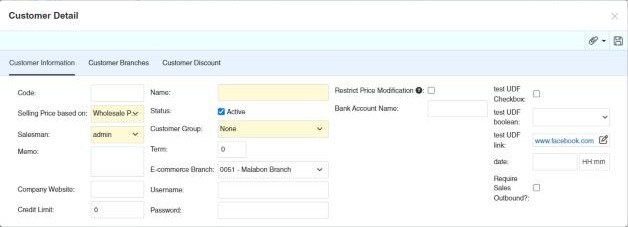
Example. ABC Grocery buys on 30 days' credit up to 100,000.00 at wholesale price: Name ABC Grocery, Selling Price based on Wholesale Price, Term 30, Credit Limit 100,000.00, Salesman Ramon. On Customer Branches it adds its two stores, ABC Grocery – Main and ABC Grocery – Market, with their addresses and contact persons.
The Customer Information tab
| Field | What it's for |
|---|---|
| Code | Your code for the customer. |
| Name | The customer's name (required). Your administrator can make names unique. |
| Selling Price based on | Which price this customer pays. See How the customer's price is chosen. Shown only when the setting for regular customers' price is "based on the customer". |
| Pricing Rate | Shown for % Add from Purchase Price: the markup % added to the purchase price. |
| Discount Rate (Discount 1–Discount 4) | Shown for % Discount from Retail Price and % Discount from Wholesale Price: up to four discounts in %, applied one after the other. |
| Default Historical Price | Shown for Historical Record and Historical Discount / Price: the price to use when the customer has never bought the product (wholesale, retail or price A–E). |
| Apply "Others->Product Discount" | Shown for Retail Price: Yes applies the discounts set up in Product Discount to this customer's sales. |
| Salesman | The customer's salesman, filled in on their sales. |
| Memo | Notes. |
| Company Website | The customer's website. |
| Credit Limit | The most the customer may owe. When your administrator has switched credit limits on, a sale that would take the customer's unpaid balance above this amount gets a warning or is refused (depending on the setting), unless the user has the permission to exceed it. See Credit limit. |
| Status | Tick Active. Inactive customers can't be chosen on new transactions. |
| Customer Group | The Customer Group, for filtering and reports. |
| Term | Payment term in days. It sets the due date of the customer's sales (used by the collection due warning). |
| E-commerce Branch, Username, Password | Only if the customer orders through your CIRMS online store: the branch that fills their orders and their sign-in. |
| Restrict Price Modification | If Enabled, O.Price and Price field are not editable for this customer in Sales Outbound Transaction. |
| Bank Account Name | The customer's bank account name, for payments by transfer. |
| User-defined fields | Extra fields your company added, if any (see User-defined fields). |
How the customer's price is chosen
When you add a product to a sale for a regular customer, CIRMS fills in its price from the customer's Selling Price based on, using the prices of the sale's branch (the product's Price tab):
| Choice | Price on the sale | Example (retail 100.00, wholesale 90.00, purchase 70.00) |
|---|---|---|
| Historical Record | The last price this customer paid for the product. If they never bought it, the Default Historical Price. | Last sold at 92.00 → 92.00. First purchase with default Wholesale → 90.00. |
| Historical Discount / Price | Like historical record, but if the last sale had line discounts, the default price with those same discounts. | Last sale: 100.00 less 5% → 100.00 with Discount 1 5% = 95.00. |
| Wholesale Price / Retail Price | The branch's wholesale or retail price. | 90.00 / 100.00. |
| Price A – Price E | That price level of the product. | Price B 88.00 → 88.00. |
| % Add from Purchase Price | Purchase price plus the Pricing Rate. | Rate 20% → 70.00 × 1.20 = 84.00. |
| % Discount from Retail Price / % Discount from Wholesale Price | Retail or wholesale price, with the Discount Rate as line discounts. | Retail with 10% and 5% → 100 × 0.90 × 0.95 = 85.50. |
Users can still change the price on the sale unless Restrict Price Modification is ticked. Your administrator can instead make all regular customers pay wholesale or retail (setting For regular customers, prices are based from); then this field is hidden.
The Customer Branches tab
The customer's addresses and outlets. On a sale you choose one as the Customer Branch, and its address prints on the documents. Fill in the fields at the bottom and click Create New; click a row to change it, then Update; Clear empties the fields.
| Field | What it's for |
|---|---|
| Name / Chinese Name | The branch or outlet name. |
| Address | Delivery and billing address. |
| Owner's Name | The owner. |
| Contact, Contact Person | Who to contact there. |
| Landline, Mobile No., Fax Number, E-mail Address | Contact numbers and e-mail. |
| TIN | The customer's tax identification number, printed on invoices. |
The Customer Discount tab
Discounts and adjustments agreed with this customer, one per row:
| Column | What it's for |
|---|---|
| Disc/Adj Type | The type, from Disc/Adj Type. |
| Adjustment By | By Discount (%) or By Amount (±). |
| Adjustment Value | The % or the amount. |
| Remarks | Notes. |
Settings that affect this module
Your administrator can change these in Settings (see About settings). Click a section to see the choices.
Generic Settings › CIRMS E-Commerce
Generic Settings › Customer
- Set customer default 'selling price based on' upon creation.
- Enable data "Unique" feature in Customer Data "Name" field?
Generic Settings › Sales and Other Income
- Unit based on History?
- If customer is based on "% Add from Purchase" or "% Discount from Wholesale/Retail" Price, save the % rate as Discount rate in transaction?
- For regular customers, prices are based from
Generic Settings › Sales Outbound
- Should untransferred (post-dated or uncleared) checks be counted in the credit limit usage?
- Cost price basis for Batch management type products
- Cost price basis for Serial management type products
Other permissions for this module
| Permission | Allows you to |
|---|---|
| Data › Customer › Update | Change customer details |
| Data › Customer › Delete | Delete customers |
| Data › Customer › Import Excel | Import customers from Excel |