Gift Check
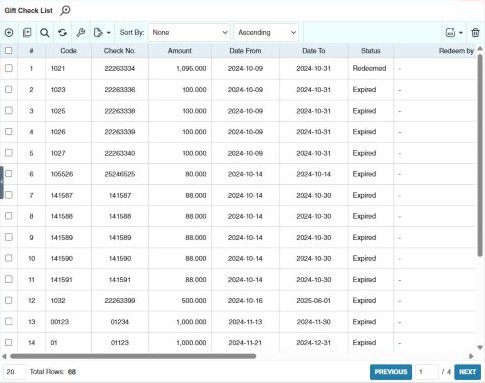
Gift checks are vouchers with a fixed amount that customers redeem at the POS. Each has a unique code and check number, and a validity period.
Menu: POS › Gift Check
How to create a gift check
-
Open POS › Gift Check and click ⊕ (Add New Gift Check).
-
Enter:
Field What to enter Code A unique code. Check No. A unique check number. Date From / Date To The dates it can be redeemed. Amount The value (more than zero). Remarks Optional notes. -
Click Save.
How to create many gift checks at once
- Click Bulk Entry in the toolbar.
- Enter the Date From and Date To, the first code (Code Series (Start)), the Qty to create, the first check number (Check No. Series (Start)) and the Amount.
- Click Create. CIRMS numbers the codes and check numbers in sequence.
Tracking gift checks
The list shows each gift check's Status, and once it's used, who redeemed it (Redeem by), when (Redeem date), at which branch and terminal, and the receipt (OR Number).
Use Bulk Update to change the dates or amount of several gift checks, and Bulk Delete to delete unused ones.
Example
For Christmas, a company buys 200 gift checks of 500.00 for its employees. Use Bulk Entry: Date From 1 December, Date To 31 January, Code Series (Start) GC24-0001, Check No. Series (Start) 100001, Qty 200, Amount 500. CIRMS creates GC24-0001 to GC24-0200 with check numbers 100001 to 100200. When an employee pays with one at the POS, it's marked as redeemed with the receipt number, and it can't be used again.
Other permissions for this module
| Permission | Allows you to |
|---|---|
| POS › Gift Check › Update | Change gift checks |
| POS › Gift Check › Delete | Delete gift checks |
| POS › Gift Check › Export Excel | Export the list |