Stock Return Inbound
A stock return inbound records stock that another branch has returned to you. When it's approved, the quantities are added back to stock at the For Location.
Menu: Stock Transferring › Stock Return Inbound
For buttons, statuses and approvals shared by all transactions, see Working with transactions.
How to receive returned stock
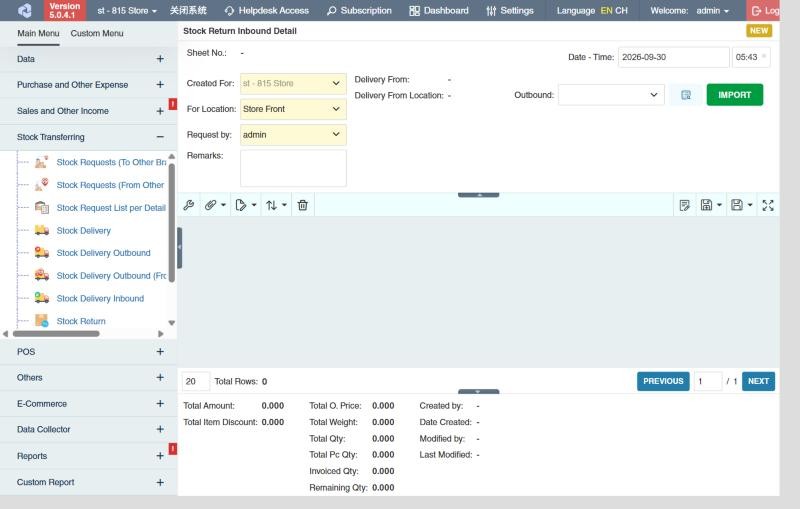
- Open Stock Transferring › Stock Return Inbound and click ⊕ (Add New Transaction).
- Fill in Created For, For Location, Request by and Remarks.
- In Outbound, choose the other branch's Stock Return Outbound and click Import. The Delivery From and Delivery From Location are filled in.
- Change the quantities to what actually arrived.
- Click Save ▾ and choose Save, Approve or Approve and Print.
What approval does
Stock goes up at your For Location, the returning branch's outbound is closed for the received quantities, and serial numbers become available at your branch. If the goods then go back to the supplier, create a Purchase Return Outbound with this inbound as its reference; the list's Return to Supplier column shows how much has been returned.
Example
The warehouse receives the 24 jackets from Store 2: create a stock return inbound from Store 2's outbound, count 24, approve. The jackets are back in the warehouse's stock and can be sent to another store.
Settings that affect this module
Your administrator can change these in Settings (see About settings). Click a section to see the choices.
Generic Settings › Stock Return Inbound
Other permissions for this module
| Permission | Allows you to |
|---|---|
| Stock Transferring › Stock Return Inbound › Approve | Approve inbounds, which adds the stock back |
| Stock Transferring › Stock Return Inbound › Revert | Revert inbounds back to draft |
| Stock Transferring › Stock Return Inbound › View Other Users' Transaction | See inbounds created by other users |